VPN configuration explained: Setup and common fixes


Virtual private networks (VPNs) usually connect with one click, but configuring your VPN manually gives you more control over how it works. For example, changing the VPN protocol, server, or split tunneling settings can improve speed, connection stability, or access to private networks.
Manual VPN configuration also lets you enter specific connection details, such as server addresses, certificates, and authentication settings.
What VPN configuration includes
When you configure a VPN, you adjust settings that affect how it performs. These can include the following:
Server location
Server location is one of the most common VPN configuration settings. It controls which VPN server your device connects to and can affect speed, latency, and how websites or services identify the connection.
When your device connects to a VPN server, its internet traffic uses an IP address associated with that server's location. For example, connecting to a VPN server in Barcelona can make websites and services see the connection as coming from Barcelona.
Auto-connect
Auto-connect is a VPN setting that can start the VPN connection automatically in certain situations, depending on the app and device. For example, some VPN apps can connect when your device starts up or when it joins a network not marked as trusted. You may also be able to set trusted networks where the VPN stays off by default.
Protocol
The VPN protocol is one of the main VPN configuration settings. It controls how the VPN app builds and protects the connection between your device and the VPN server. Changing it can affect speed, stability, security, and the VPN's performance on certain networks.
Some protocols work alone, while others are paired with another protocol or security framework. In most VPN apps, you don't usually mix and match these manually. Instead, the app or device settings typically offer supported combinations.
Kill switch
A kill switch is a VPN configuration setting that controls what happens if the VPN connection drops unexpectedly. When enabled, it blocks internet traffic until the VPN reconnects. This helps prevent your device's real IP address from becoming visible to websites, apps, or network services. It also helps stop traffic from leaving your device outside the encrypted VPN tunnel.
Split tunneling
Split tunneling lets you choose which apps, IP addresses, or types of traffic use the VPN and which bypass it, depending on the VPN app, device, and operating system. This can help when an app works better over a local network, a nearby service, or a direct connection. For example, you might exclude a work printer, video call app, or local network service from the VPN while keeping browser traffic protected by it.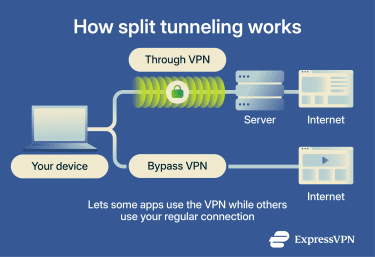
DNS settings
Domain Name System (DNS) settings control which DNS servers handle website lookup requests when the VPN is connected. Many VPN apps use their own DNS servers by default. However, some VPN apps let you choose custom DNS servers. This can help with filtering, compatibility, or specific network setups.
Workplace or managed VPN profiles
Workplace or managed VPN profiles are a configuration setting usually set up by an organization. They define how employee devices connect to internal tools, systems, or private networks.
These profiles may include server details, certificates, authentication rules, device requirements, and access policies set by the organization.
Content blockers
Content blockers are optional VPN app settings you can enable or disable as part of your VPN configuration. Depending on the app, these settings can block unwanted content such as trackers, ads, malicious sites, or adult sites.
Advanced or manual setup details
Advanced VPN configuration usually refers to settings that the VPN app handles automatically, such as server details, authentication methods, certificates, or configuration files. However, some operating systems let you create VPN connections in the system settings or via the Network Manager.
When configuring a VPN manually, you may be asked for basic connection details, such as:
- Server address: The VPN server address tells your device where to connect. You may need to copy a hostname or IP address from the VPN provider and enter it manually.
- Sign-in details: These typically include a username, password, app-specific credentials, or another authentication method used to verify access to the VPN.
- Certificates: Certificates are digital files used to verify the identity of the VPN server, device, or user.
- Pre-shared keys: Pre-shared keys are shared secrets that some VPN setups use for authentication.
- Configuration files: Some OpenVPN setups use.ovpn or.conf files that contain the details a VPN client needs to connect. Depending on the provider, changing locations may require importing a different file.
Types of VPN configurations
VPN configuration can also describe the broader setup a VPN uses to connect. These aren't always settings you change directly. They describe how traffic is routed, what resources the VPN can access, and whether the VPN is used for personal privacy, workplace access, cloud environments, or network-to-network connections.
- Personal VPN: Creates a secure tunnel between your device and a VPN server. Personal VPN apps often include settings such as server location, protocol selection, auto-connect, kill switch, and split tunneling.
- Site-to-site VPN: Connects two or more networks through an encrypted tunnel, such as a company's main office network and a branch network. This setup mainly applies to business network architecture.
- Remote access VPN: Allows off-site workers to connect to a private network and access internal resources. The VPN encrypts traffic between the remote worker's device and the private network, helping protect data in transit. With the right access controls, it can give remote workers a level of network access similar to being on site.
- Cloud VPN: A managed VPN service used to connect cloud environments with other networks, such as an office network or another cloud network. This setup can reduce the need for dedicated on-premises VPN hardware, making it easier for organizations to adapt and scale.
- Secure Sockets Layer (SSL) VPN: Commonly called SSL VPN, though modern implementations, in fact, rely on Transport Layer Security (TLS) to provide remote access through a browser portal or dedicated client, depending on the setup. Organizations often use SSL VPNs to give employees access to specific internal apps or resources.
- Double VPN: Routes traffic through two VPN servers instead of one. Depending on the provider's implementation, this can add an extra routing or encryption layer, but it may also reduce speed.
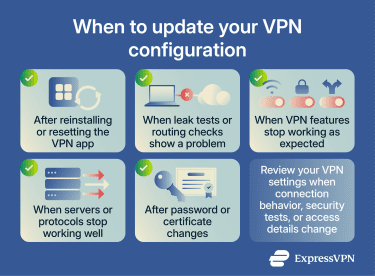
When to update your VPN configuration
You should review or update your VPN configuration settings in these situations:
- After reinstalling or resetting the VPN: Your VPN settings may return to default, so features like the kill switch, auto-connect, split tunneling, protocol choice, and DNS options may need to be set up again.
- When VPN tests show leaks or routing problems: DNS leaks, Web Real-Time Communication (WebRTC) leaks, and real IP exposure can point to configuration issues.
- When app features don't behave as expected: If the kill switch, auto-connect, or split tunneling stops working as intended, the related settings may need another review.
- When servers or protocols stop working well: Slow speeds, dropped connections, blocked access, or failed connections may improve after changing servers, switching protocols, or adjusting DNS settings.
- After password or certificate updates: Manual or enterprise VPN connections may stop working if sign-in details or certificates change or expire.
How to configure a VPN on your devices
The steps below use ExpressVPN to show how to find and change common VPN settings across different devices.
iPhone, iPad, and Android
After downloading the ExpressVPN app, you can find common Android and iOS settings in the app's Add-ons and Profile sections.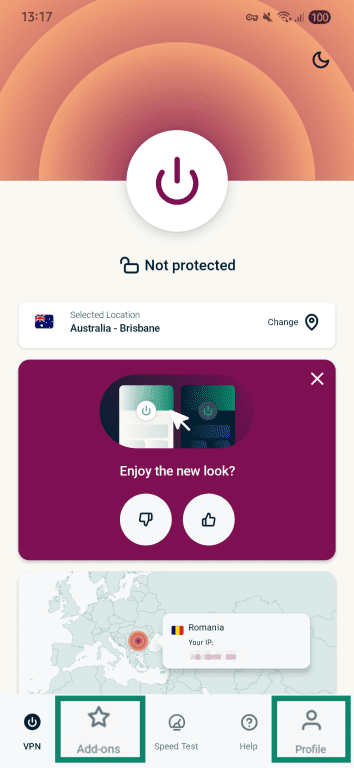
In the "Add-ons" section, you'll find the "Advanced VPN Protection" options:
- Block trackers
- Block malicious sites
- Block ads
- Block adult sites
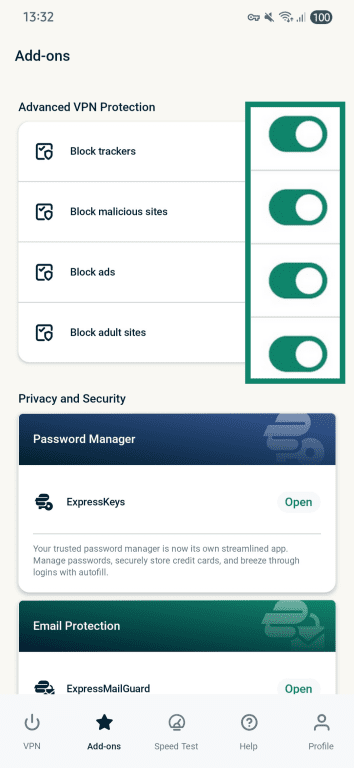
Note: ExpressVPN's Advanced Protection works when the VPN is connected and the app is using Automatic or Lightway. Availability can also vary by plan and device.
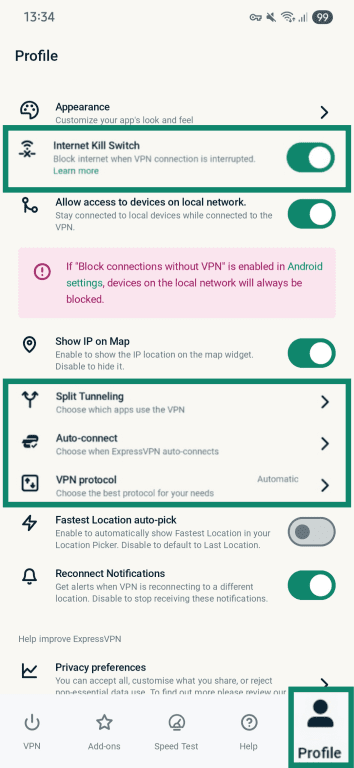
In the "Profile" section, you'll find additional configuration settings:
- Kill switch
- Split tunneling
- Auto-connect
- VPN protocol
 ExpressVPN also includes supporting features that can help you compare configuration choices. For example, the Speed Test feature can help check how connection speeds change across different VPN server locations or setups.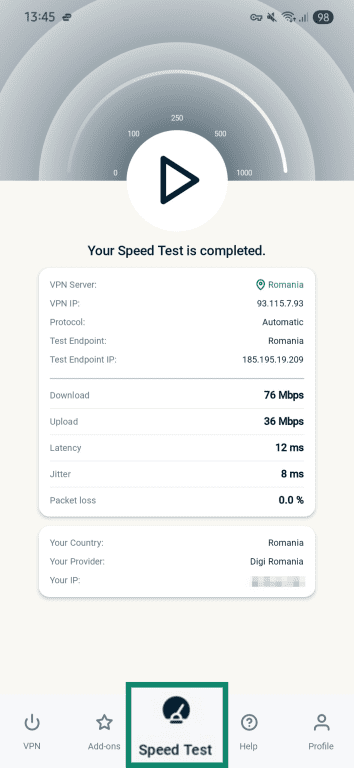
Windows and Mac
In the Windows or Mac ExpressVPN app, the following configuration options are on the homepage:
- Location selector.
- VPN protocol selector.
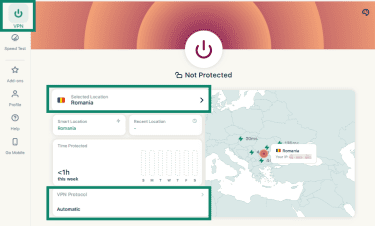 The "Add-ons" section contains the "Advanced Protection" features that allow you to block ads, malicious websites, trackers, and adult sites.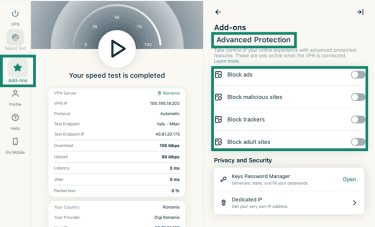
Under the Profile section, there are additional configuration options, including split tunneling, kill switch, auto-connect, and appearance settings.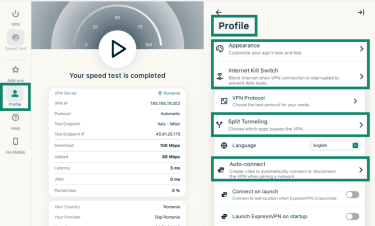
Router
Configuring a VPN for your router depends on the VPN provider. For ExpressVPN, you can check out these guides:
- How to configure ExpressVPN on Asus routers
- How to configure ExpressVPN on Linksys routers
- How to configure ExpressVPN on Netgear routers
How to check if your VPN is configured correctly
The following checks can help confirm if the VPN connection is configured and working as expected:
- IP address and server location: Connect to the VPN, then use an IP checker to confirm that the visible IP address isn't your device's IP address.
- Kill switch: Turn on the kill switch, connect to the VPN, then briefly interrupt your connection, such as by switching networks or toggling Wi-Fi off and on. If the kill switch works as expected, internet access should stay blocked until the VPN reconnects.
- Split tunneling: If your VPN app supports split tunneling, set one web browser up to use the VPN and another to bypass it. The browser using the VPN should show the VPN IP address using an IP checker, while the browser bypassing it should show your non-VPN IP address.
- Speed and stability: Run a speed test before and after connecting to the VPN. Speed and stability can vary depending on configuration choices. Some speed reduction can happen because VPN traffic travels through an encrypted tunnel with an added server, but major slowdowns or frequent disconnects may point to a configuration, server, or network issue.
- Auto-connect: Restart your device or switch networks to check whether the VPN reconnects automatically if auto-connect is enabled.
- DNS leaks: Run a DNS leak test. If the results show your internet service provider's (ISP's) DNS servers, your DNS requests may be bypassing the VPN tunnel.
Common VPN configuration problems and fixes
When a VPN stops connecting, slows down, or behaves unexpectedly, several factors may be involved, including VPN configuration settings, device settings, network conditions, or account issues. The checks below show what to review and which changes may help.
VPN not connecting
If your VPN isn't connecting or you get the "Can't connect" error, the server location may be unavailable or overloaded, or your firewall, antivirus, or other security software might be blocking the VPN connection.
Changing to another server location can help if the issue is linked to a specific VPN server. If the VPN app is trusted, the relevant firewall or security software settings may need to be changed to allow the VPN app to connect.
Incorrect login details
Incorrect login details can prevent you from signing in or connecting to a VPN server. With manual configurations, especially terminal-based setups, credential errors can be harder to spot. Checking your login details and signing in again should resolve the issue.
Slow speed
Slow VPN speeds can happen because of server load, limited network bandwidth, protocol choice, server distance, or local network conditions. Switching to a nearby server, changing protocols, or restarting the VPN app can help.
Testing your base internet speed without the VPN can also show whether the slowdown is linked to the VPN or the internet connection itself.
Connection drops
Unstable VPN connections that drop unexpectedly may be linked to the internet connection, VPN server, kill switch, protocol choice, or auto-connect behavior.
Restarting your router can help if the underlying internet connection is unstable. Changing server location or VPN protocol may also help if the issue is linked to the current VPN setup. If the kill switch keeps interrupting traffic, reviewing the kill switch settings or reconnecting to the VPN can help narrow down the cause.
VPN connected, but not working
If the VPN is connected but you can't access the internet, it might be because of an outdated VPN app version, network restrictions, interference from an antivirus or other security software, an unstable VPN server, or misconfigured proxy settings.
Disconnecting from the VPN, changing the VPN protocol, or connecting to another server may help. If the problem persists, contact the relevant customer support team or review the VPN configuration.
Device limit reached
Some VPN providers limit how many devices or simultaneous connections an account can use. If you reach that limit, you won't be able to set up the VPN on extra devices. To solve this, you'll need to uninstall the VPN app from an existing device or install the VPN at the router level.
If your router supports VPN setup, devices connected through that router can use the VPN connection.
VPN features are not working
If features like auto-connect or split tunneling don't work as expected, the related app settings may need to be reviewed. Battery-saving settings, app permissions, or operating system updates can also affect whether the VPN app runs in the background, starts automatically, or applies settings to specific apps.
Restarting the VPN app and any affected apps, such as the browser, can help refresh those settings. If the issue continues or only affects a specific feature, device, app, or network, the relevant customer support team can help check the setup and confirm which settings apply.
FAQ
Do you need technical skills to configure a VPN?
Which VPN protocol is best for most users?
Can a VPN configuration affect internet speed?
Can you use one VPN configuration on multiple devices?
What should you do before deleting a VPN configuration?