How to identify and remove the PC App Store adware


Adware often disguises itself as legitimate software and can lead to persistent ads, browser hijacking, and unwanted system changes. One common way people encounter adware is through third-party software installers that bundle extra programs users didn’t intend to install.
PC App Store is one such third-party installer. It’s commonly classified as a potentially unwanted program (PUP) due to how it’s distributed and how it behaves on users’ systems, and it can also act as a delivery channel for additional adware or other unwanted software.
Understanding PC App Store adware
When software is installed through the PC App Store, it may include additional components that behave like adware. Here’s why.
What is PC App Store?
PC App Store is a third‑party platform that allows software developers to distribute apps and users to install software on their computers. However, it’s not an official Microsoft or Windows tool, and it isn’t distributed through official channels.
While the PC App Store can be downloaded directly from its publisher’s website, it’s also commonly distributed through bundled installers (often in the installation process) that often contain other software, which users can install unintentionally if they don’t review setup options carefully. Fake pop-up ads and update prompts may also install the PC App Store.
What’s more, software obtained through the PC App Store may include unwanted components like browser hijackers or adware. In some cases, programs associated with the PC App Store are also distributed via misleading websites or browser redirects that direct users to unofficial or modified download pages.
Is PC App Store a virus or adware?
The PC App Store itself is not considered a virus or adware. However, it’s commonly classified as a PUP: this is because of how it’s distributed (often bundled with other software) and because it often introduces additional software that users may not intend to install.
While the platform itself may not be malicious, software installed through the PC App Store platform or via bundled installation setups can introduce unwanted or harmful programs, such as:
- Adware: Displays unwanted ads, like pop-ups or banners. It can slow down your device and expose you to risky or misleading content.
- Spyware or tracking components: Some bundled programs may monitor browsing activity or collect usage data beyond what users expect.
- Browser hijackers: Modify browser settings without authorization, like changing your default search engine or homepage, and redirect you to unwanted or fraudulent websites.
- Potentially unwanted applications (PUAs): May track user behavior or collect data beyond what’s necessary for their core function. They’re often installed unintentionally and can raise privacy concerns, even if they aren’t overtly malicious.
Risks and symptoms
Adware distributed via PC App Store comes with several risks and red flags that can range from slightly bothersome ads to malware. Here are some common ones:
- Unwanted ads: Seeing frequent pop-up ads or fake alerts on your computer or browser often indicates that adware may have been installed unintentionally through apps from the PC App Store.
- Suspicious apps: Unfamiliar apps that you don’t remember installing are a likely sign of adware, especially when paired with the PC App Store appearing on your desktop unexpectedly.
- Browser redirecting: PC App Store-related software can install browser hijackers that redirect you to sponsored, fraudulent, or risky websites, some of which can deliver additional adware or spyware.
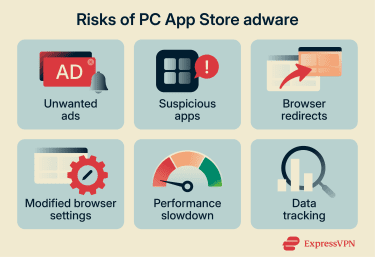
- Modified browser settings: Malware installed from the PC App Store can modify your default browser settings, change your search engine and your landing page, and serve you more ads.
- Performance degradation: Adware can consume significant resources, which can slow down your device and your internet speed. This is very noticeable when browsing.
- Data collection: Adware associated with PC App Store may include tracking components that monitor browsing behavior, such as pages visited, browsing history, or search activity.
How to remove PC App Store adware
You can remove PC App Store-related adware manually (from your computer settings) or with an antivirus solution.
Using antivirus software
To reliably uninstall PC App Store adware from your computer, an antivirus tool is often the best option. It can automatically scan your computer, detect malicious or unwanted software, and quarantine it or remove it outright.
If you don’t already have an antivirus installed, make sure you choose a legitimate tool from a reputable vendor. Once you have it installed, run a full scan of your system and wait for the results; a good antivirus should be able to detect any PC App Store adware and remove it.
Manual removal methods
If you don’t want to use an antivirus, removing PC App Store adware manually is also an option. Here’s how to do it on Windows 10 or Windows 11:
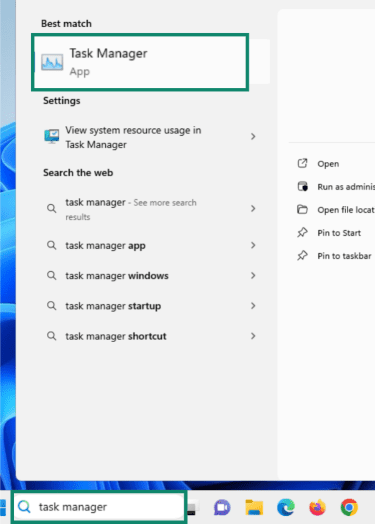
- Find the Task Manager in your taskbar and open it.
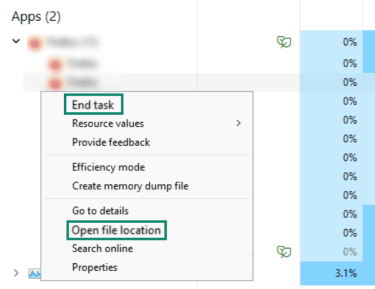
- Find the adware process, select it, and click End Task. Then, right-click the process and select Open file location. Delete the file(s) in that folder.
- Find the Add or remove programs option in your taskbar and open it.
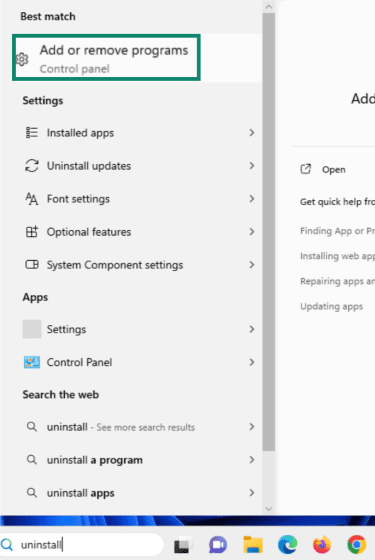
- Find the adware application by using the search menu at the top of the Installed Apps window. Then, click the three-dot menu icon to the right of the app’s name and select Uninstall from the menu. Go through the uninstallation process to remove the app from your computer.
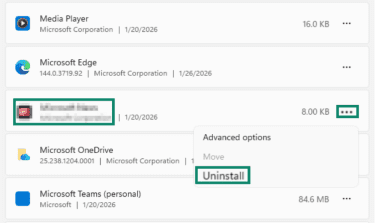
Note: You can also uninstall PC App Store itself by following the same steps.
It’s important to know that the PC App Store may add startup entries and have files in multiple locations that may not go away after uninstallation. In this case, scanning with an antivirus is the best option to identify these remnants and eliminate them. You can also check Startup or relevant AppData folders in the Task Manager for leftover files if you want to remove everything manually.
Removing browser extensions and restoring browser settings
Sometimes, PC App Store-related adware will install extensions on your browser that can track your activities, collect data, and invade your privacy. The adware may have also changed your browser settings, including your homepage and default search engine. Here’s how to remove unwanted extensions and restore your settings.
Google Chrome
- Click the three-dot icon in the top-right corner of your browser window and select Extensions.
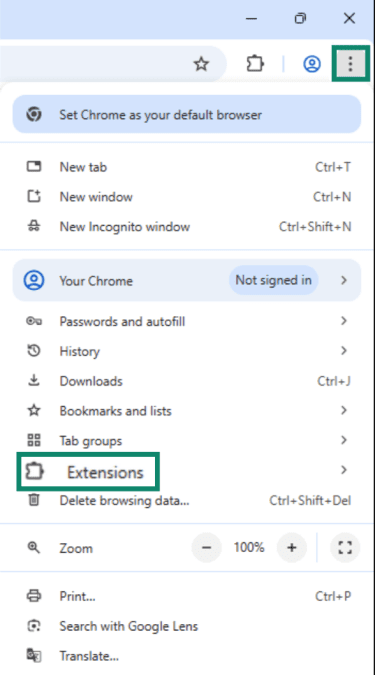
- Select Manage extensions from the sub-menu.
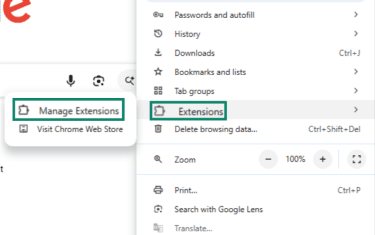
- Find the unfamiliar extension and select Remove. Select Remove one more time on the pop-up window that will appear in the top-right corner.
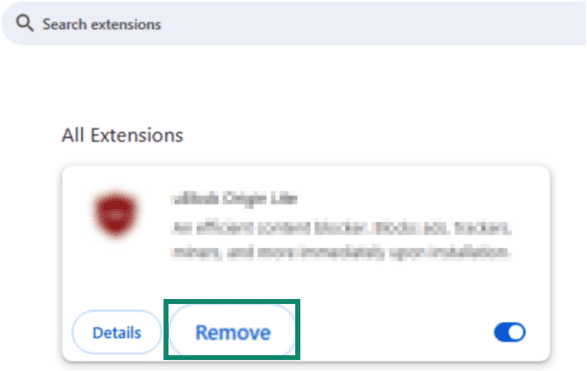
Once that’s done, you may want to reset your browser, which should fix any modifications introduced by the adware.
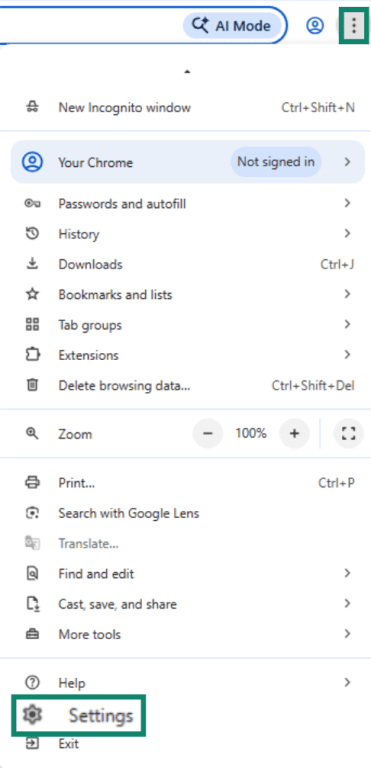
- Click the three-dot icon again and select Settings to open your Google Chrome settings.
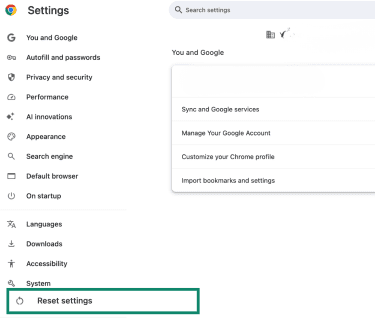
- Go to Reset settings.
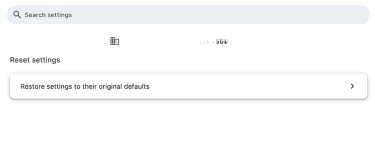
- Click on Restore settings to their original defaults.
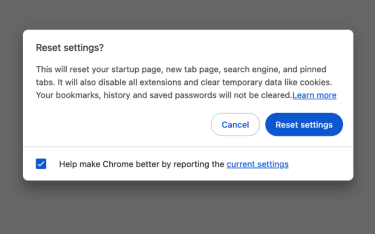
- Choose Reset settings. Note that this will delete your cookies and other temporary site data, which may log you out of accounts where you’re currently logged in.
Mozilla Firefox
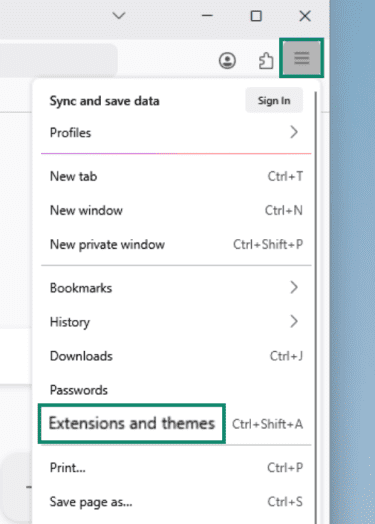
- Click the hamburger icon in the top-right corner of your Firefox browser and select Extensions and themes.
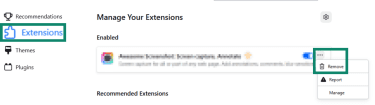
- Click Extensions, find the unfamiliar extension, click the three-dot icon on the right, and select Remove. Do this for all unfamiliar extensions.
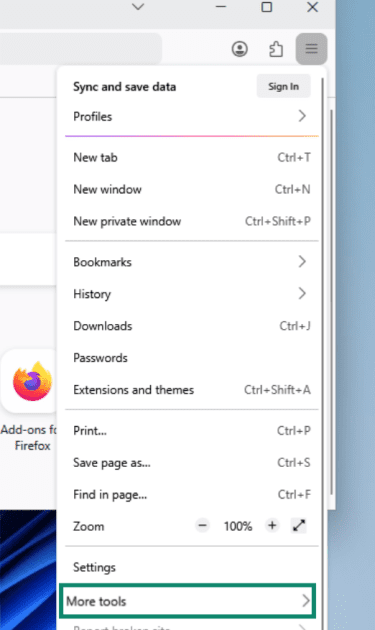
- Select the hamburger icon again and click on More tools.
- Select More troubleshooting information.
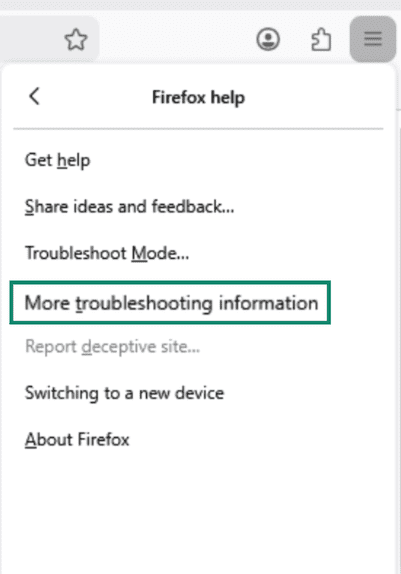
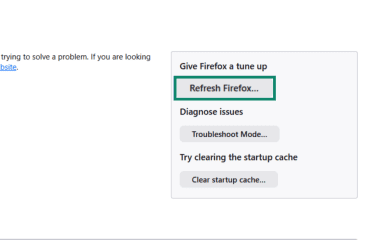
- Click Refresh Firefox… This will reset all your browser settings, including New Tab and Home options, as well as delete your cookies, which could log you out of your accounts. Your bookmarks and saved passwords are usually preserved.
Microsoft Edge
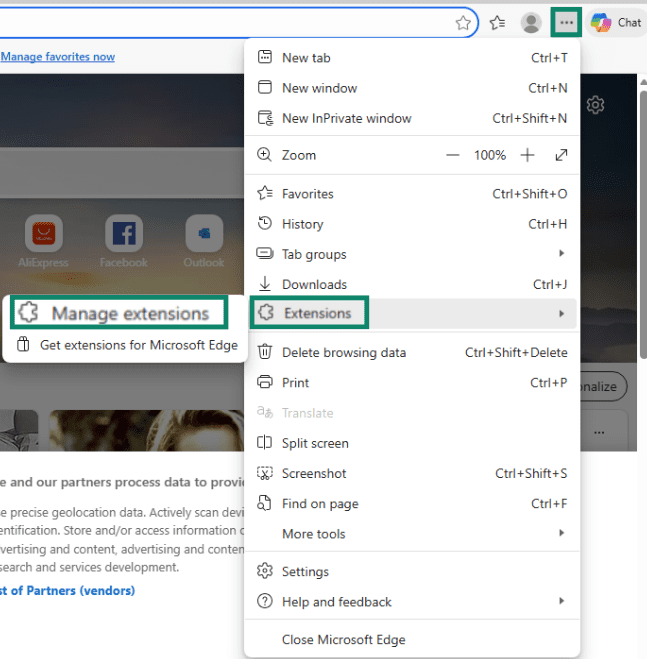
- Select the Microsoft Edge menu, click on Extensions, and then select Manage extensions.
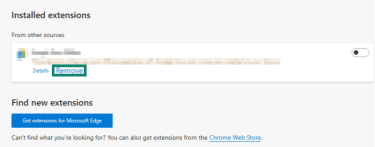
- Find the unwanted extension and select Remove. Then, confirm you want to remove it.
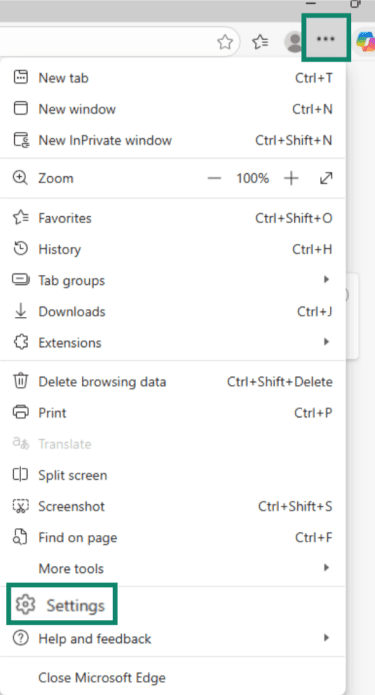
- Select Settings in the Microsoft Edge browser menu.
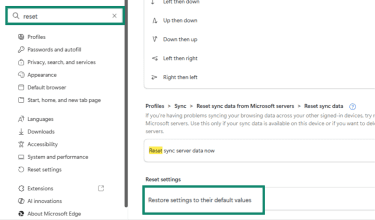
- Click on Restore settings to their default values and follow the prompt to confirm. Resetting Edge will restore your startup page, new tab page, search engine, pinned tabs, and cookies to their defaults. This may log you out of websites, but your bookmarks, history, and saved passwords are typically preserved.
Prevention tips for PC App Store adware
Adware associated with the PC App Store is often distributed through multiple installation paths, increasing the likelihood that you might install it unintentionally. If you choose to continue using the PC App Store, it’s a good idea to run a reputable antivirus program to reduce the risk of installing unwanted software.
Below are several prevention tips to avoid adware and other unwanted programs:
- Use reputable security tools: A reliable antivirus can detect and block PUAs like the PC App Store and related adware. Some tools also block access to known malicious domains, reducing the risk of redirection via misleading ads.
- Install a browser ad blocker: Ad blockers, such as the one included in ExpressVPN’s Advanced Protection, help prevent malvertising, tracking scripts, and deceptive ads that may redirect users to bundled installers or fake app stores, both of which are common installation methods for the PC App Store.
- Download software only from official sources: Stick to official vendor websites or legitimate platforms like the Microsoft Store. Even then, exercise caution and check reviews. Avoid third-party “free download” sites altogether, as they often bundle the PC App Store and other PUPs.
- Be cautious while browsing: Deceptive ads, pop-ups, and fake update prompts (a form of scareware) are common infection vectors. Avoid clicking unsolicited download buttons, especially on unfamiliar websites.
- Watch for fake “store” branding: PUPs like the PC App Store often mimic legitimate branding (such as the Microsoft Store) and use generic names, help centers, or legal notices like “All rights reserved” to appear trustworthy.
- Beware of fake update prompts: Adware is frequently installed via deceptive system update notifications claiming there’s an urgent update for an app or your operating system. Fake “Enable JavaScript” prompts are also commonly used to install adware.
- Avoid software managers: Tools that manage, recommend, or update other applications often attract bad actors who hide adware in app bundles. When installing software, always check for optional additions and use “Custom” or “Advanced” installation options to reveal and opt out of hidden apps or extensions.
FAQ: Common questions about PC App Store adware
Why does PC App Store keep popping up?
If PC App Store keeps appearing on your screen, it’s usually because it was installed alongside other software and is configured to run automatically in the background. Once installed, it may add startup entries, background processes, or browser components that trigger pop-ups, ads, or redirects even when you’re not actively using it. If you’re noticing these signs, it’s a good idea to remove the PC App Store and any related apps and extensions.
Is PC App Store dangerous or just annoying?
PC App Store is often more annoying than outright dangerous, mainly due to persistent ads and intrusive behavior. However, it can become riskier if software installed through it includes adware or browser hijackers. These programs may track browsing activity or expose you to further unwanted software, especially if you interact with deceptive ads or prompts.
Can PC App Store reinstall itself?
There’s no reliable evidence that PC App Store can reinstall itself after removal. However, leftover files or startup entries may remain if the software isn’t fully removed, which can cause related behavior to persist. To remove it, it’s best to use an antivirus solution that can scan your system and find remaining malicious files after manual uninstallation.
How did PC App Store get on my computer?
The PC App Store is often introduced during the installation of bundled software or through misleading ads. Fake update prompts or pop-up ads camouflaged as “Download” buttons may also download the PC App Store onto your computer. Downloading apps from unofficial sources or interacting with suspicious ads increases the risk of installing adware or unwanted programs. That’s why adopting security best practices (like always downloading apps from official sources) is important.
Is PC App Store related to Microsoft?
PC App Store is not affiliated with Microsoft. Despite its name and branding, it’s a third-party application and not part of the Windows ecosystem. It often brings unwanted ads and system modifications and can expose users to bundled potentially unwanted programs (PUPs) or adware.
Take the first step to protect yourself online. Try ExpressVPN risk-free.
Get ExpressVPN