How to clear Steam cache and fix download issues


It’s not uncommon for Steam downloads or updates to slow down, stall, or get stuck. Clearing the Steam download cache is a common troubleshooting step that can help resolve download-related issues.
In this guide, we’ll show you how to clear the Steam cache and share a few additional fixes in case that doesn’t help.
What is the Steam download cache?
Steam stores temporary download data locally when you download or update a game through the Steam client. This cache helps Steam manage the download process and continue it more reliably if the connection drops or the app closes unexpectedly.
Download cache vs. other Steam caches
Steam stores different kinds of temporary local data for downloads and client operations. That’s why clearing the right cache can help resolve a specific issue, while deleting the wrong files may not fix the problem.
Steam's built-in Clear Download Cache option removes cached download data used for installs and updates. This can help fix stuck, slow, or failed downloads. It does not remove installed games, though it may sign you out and temporarily interrupt active downloads.
Steam also stores other temporary local files, including the appcache and depotcache folders in the Steam install directory. These are not cleared through the in-app option, but removing them can sometimes help if download problems continue after clearing the download cache.
When to clear the Steam download cache
Clearing the download cache mainly affects Steam game downloads and updates. Valve recommends it as a troubleshooting step when:
- Game downloads or updates fail to start.
- Downloads stall or stop progressing.
- Downloads fail during installation or updating.
- Downloads are unusually slow or unstable.
What happens when you clear the Steam download cache
Clearing the Steam download cache is straightforward. Here’s what to expect after deleting the cache:
- You'll likely need to sign back into Steam. If you have your login credentials saved, Steam usually logs you back in automatically. Otherwise, you may need to re-enter your username and password.
- Active downloads may be interrupted. You may need to resume downloads after Steam restarts.
- Installed games remain untouched. Steam won’t delete or modify installed games, downloadable content (DLCs), or save data.
How to clear the Steam download cache
You can clear the Steam download cache in the app. For persistent download problems, Valve also recommends manually clearing the appcache and depotcache folders in the Steam install directory. However, the in-app option is the standard method for download-related issues.
How to clear the Steam download cache in the app
To clear the Steam cache in the app, follow the steps below. The instructions are similar for Windows and macOS.
- Launch the Steam app and sign in if needed.
- Click Steam at the top left, then select Settings (on Windows) or Preferences (on macOS) from the dropdown menu.

- Click Downloads in the left-hand menu.
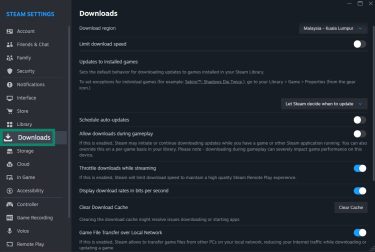
- Scroll down to Clear Download Cache and click Clear Cache.
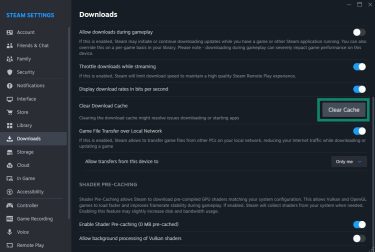
- Click Confirm.

How to manually delete Steam cache files on Windows
For more advanced troubleshooting, Valve’s Steamworks documentation recommends closing Steam and deleting the appcache and depotcache folders from the Steam installation directory.
Be careful when deleting files manually, since removing the wrong files can cause additional problems.
- Close the Steam app.
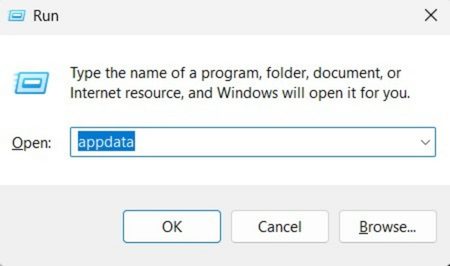
- Press the Windows + r keys together to open the Run box.
- Type in appdata and press Enter or click the OK button; this will open the AppData folder.
- Double-click Local, then Steam to open the cache folder.
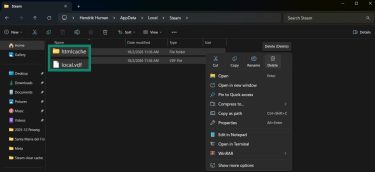
- Select everything in the folder and choose Delete.
For a more extensive cleanup, delete the following cache files from the Steam installation folder:
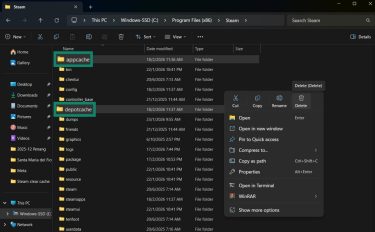
- Open File Explorer and go to the Steam installation folder, such as Program Files (x86) > Steam.
- Delete the appcache and depotcache folders. Steam will reacquire or rebuild the data it needs on the next launch.
How to manually delete Steam cache files on Mac
Here’s how to find the locally stored Steam download cache files and delete them on macOS:
- Hover over Go from the menu bar and click Go to Folder.
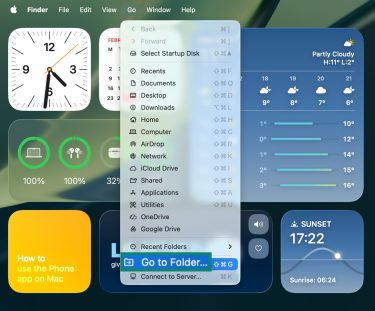
- Paste ~/Library/Caches into the field and navigate to it.

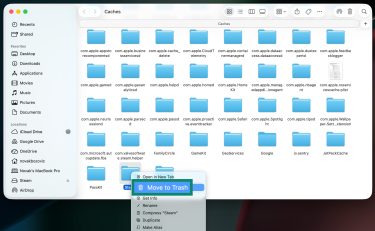
- Drag and drop all files from the Caches folder whose names contain “Steam” to the Trash, or right-click and choose Move to Trash.
Troubleshooting if clearing the cache didn’t help
Download-related issues in Steam are not uncommon, and clearing the download cache is one of Valve’s standard fixes. If it doesn’t help, Valve also suggests trying other fixes, such as changing the download region, repairing the library folder, or verifying game files.
Restart Steam completely
If clearing the cache doesn’t solve the issue, close Steam completely and reopen it. Restarting the PC may also help with broader system or connection problems.
Update the Steam client
Make sure the Steam client is up to date. An update may resolve bugs or compatibility issues that affect downloads. If needed, also Check for Steam Client Updates, since broader system problems can sometimes affect connectivity or storage performance.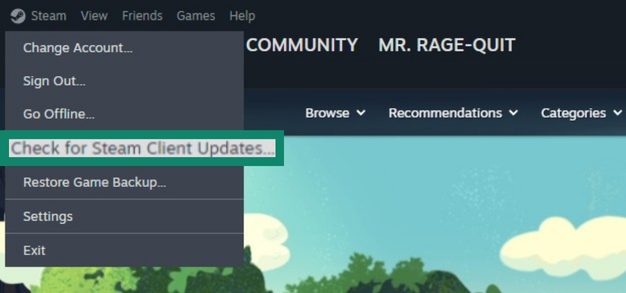
Updating your operating system and hardware drivers may also help resolve underlying issues that affect Steam downloads or connectivity.
Retry your download or update
After clearing the cache and restarting Steam, try downloading or updating again. If it doesn't resume on its own, open the game in your library and start or resume the download manually. Click on the INSTALL, DOWNLOAD, or UPDATE button.
Steam’s Download Manager can also be used to review and manage queued downloads.
Check the Steam server status and your connection
If Steam downloads are slow or failing, the issue may be with the content servers serving your current region. Steam says that some regions can become slow, overloaded, or experience hardware problems, and recommends temporarily switching to a different Download region.
To do this, click Steam in the upper-left corner, select Settings or Preferences, then open Downloads and choose another option from the Download region dropdown.
Note: Changing the Download region for troubleshooting is not the same as changing your store country. Steam’s store country settings are tied to your actual location and should only be changed when moving to a new country.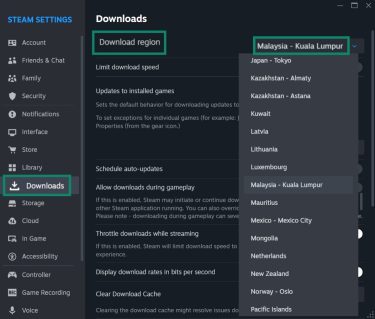
In the same Downloads window, check whether the Limit download speed is enabled. Disable it or raise the limit if needed.
If Steam still downloads slowly, the issue may be with the broader connection rather than the app itself. Test whether the internet is also slow on the same device, close bandwidth-heavy background apps, and see whether other devices on the same Wi-Fi network are using a lot of bandwidth. As a general network troubleshooting step, clearing the PC’s Domain Name System (DNS) cache may also help.
Read more: How to increase download speed on your PC and understand internet speed for gaming.
Verify game files if a single game is affected
If the problem affects only one game, verify the integrity of that game’s files from its Properties menu in Steam. Click Installed Files > Verify integrity of game files. Let the process complete before retrying the download.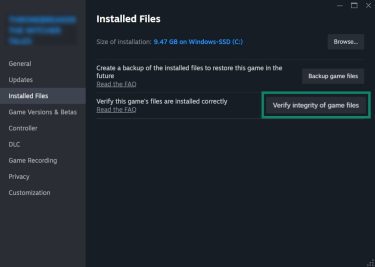
Valve also recommends repairing the Steam library folder if broader installation or update issues persist. To do this, click on Steam > Storage > the three-dot menu icon > Repair Library. Depending on the size of your library, the process might take some time.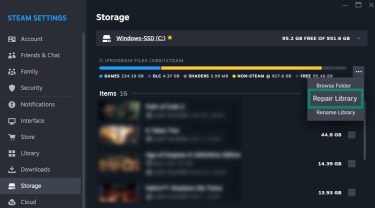
Reinstall Steam without removing games
Reinstalling Steam is a last resort. Uninstalling Steam can remove installed games unless the steamapps folder is preserved first.
On Windows, go to Program Files (x86) > Steam and delete everything except steamapps if you want to preserve installed games. Reinstalling Steam in the same location can preserve existing game installs.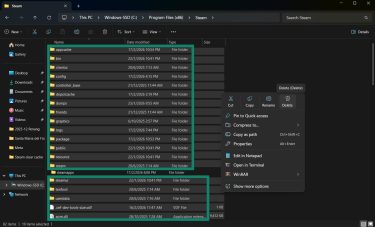
On Mac, go to Users/[username]/Library/Application Support/Steam and delete everything there except steamapps if you want to preserve installed games.
Check firewall and antivirus settings
Firewall or antivirus software can sometimes interfere with Steam. If the problem persists, review those settings carefully and test whether temporarily disabling a blocking feature resolves the issue.
Check storage health
Make sure the drive has enough free space and is working properly. If needed, try installing the game on a different drive. As a last resort, reinstall the affected game. Save handling varies by title, so check whether the game supports Steam Cloud or back up local save files first.
FAQ: Common questions about clearing Steam cache
Will clearing the Steam download cache delete my games?
Will I lose save files if I clear the Steam cache?
Does clearing the cache fix slow Steam downloads?
How often should you clear the Steam download cache?
Is clearing the Steam cache the same as clearing the browser cache?
Take the first step to protect yourself online. Try ExpressVPN risk-free.
Get ExpressVPN